How to Get a Logo Digitized for a Brother Embroidery Machine (PES Files)

Step 1: Know your machine
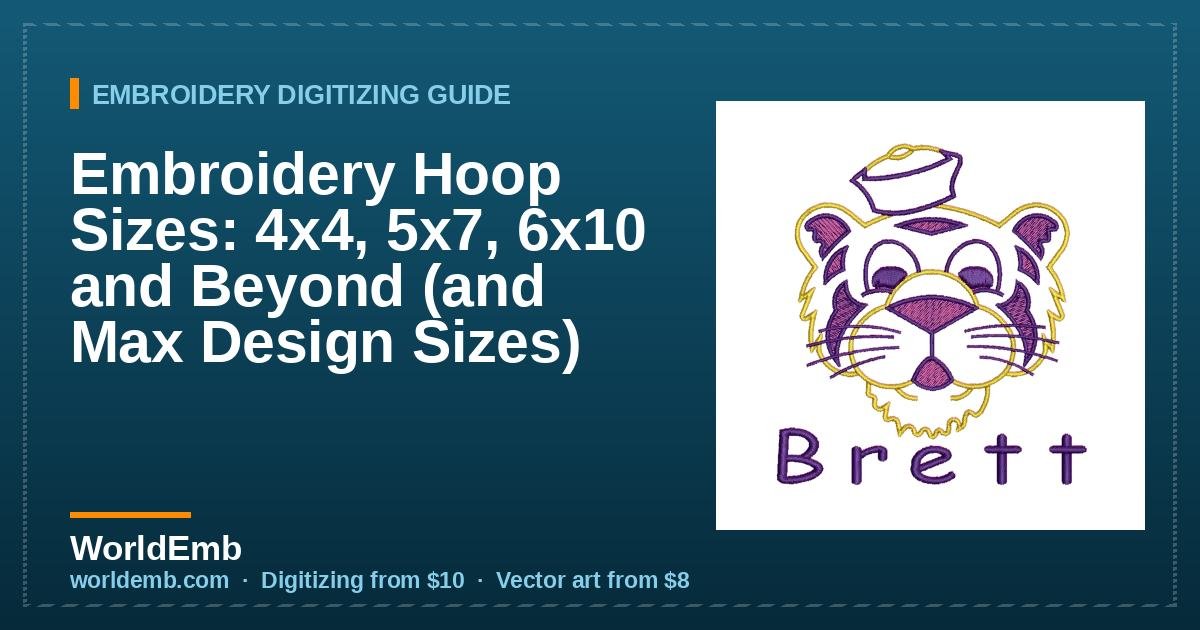
Check your model's maximum embroidery area. Entry models are often 4x4 in (100x100 mm); many popular models have 5x7 in (130x180 mm) hoops. Brother PR multi-needle machines also read DST.
Step 2: Prepare your artwork
Send the clearest logo you have, the finished size, and the garment type. See preparing artwork.
Step 3: Get the PES file
Ask your digitizer for PES, plus the source file for future edits. Mention your model if it's older, as some machines need older PES versions.
Step 4: Transfer to the machine
- Copy the PES file to a USB stick (many machines prefer files in the root folder, not inside sub-folders).
- Insert it, find the design in the machine's menu and load it.
- Some models also connect via software or Wi-Fi apps.
Step 5: Test sew
Hoop a scrap of the same fabric with the right stabilizer and run a test before stitching the real garment.
Common problems
| Problem | Likely cause |
|---|---|
| Machine doesn't show the file | Wrong format/version, file in a sub-folder, unsupported USB stick |
| "Design too large" | Design exceeds the hoop's sewing field |
| Wrong colors on screen | Colors are a preview; choose threads you like |
More fixes in why a machine won't read a file.
Frequently asked questions
What file format does a Brother embroidery machine use?
Brother and Baby Lock home machines use PES files; Brother PR multi-needle machines also read DST.
How do I put an embroidery design on my Brother machine?
Copy the PES file to a USB stick (ideally in the root folder), insert it into the machine and select the design from the menu.
Written and reviewed by the WorldEmb digitizing team from day-to-day production experience. Spotted something out of date? E-mail designs@worldemb.com. Our editorial standards.
Need this done for you?
WorldEmb digitizes logos from $10 and converts artwork to vector from $8, usually within hours, with free revisions.
Get a Free Quote See Pricing